Collecting Digital Evidence with WinFE
Yair V.
I run across with two HP ProDesk computers during a digital forensic investigation, the computers were set up with Windows 10 and turned off. To perform the digital evidence collection which involve acquire forensic images maintaining the integrity of the evidence against modifications, the first plan was to extract the storage devices and use hardware write-blockers; however, after failed attempts to remove the screws securing the SSD´s, I made the decision to use a bootable operating system.
Usually, my first shoot when I run off hardware write-blockers is Paladin, a Live Linux-Based Environment developed by Sumuri than can be use as software write-blocker. However, once the computer was boot with Paladin and the forensic mode was selected the screen went black.
My next option was the Windows Forensic Environment WinFE developed initially by Troy Larson and improved by Colin Ramsden and others DFIR. WinFE is bootable operating system recognized as a software write-protection tool and can be set up in a USB device to boot or start a computer and secure digital evidence.
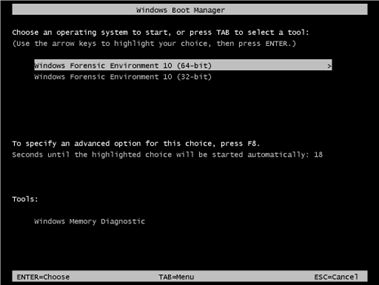
Image No. 1 WinFE Boot
The most that I like about WinFE is that can be set up with your preferred tools to acquire digital evidence. For instance, FTK Imager, Encase, X-Ways, etc. WinFE is free to use but there are some restrictions for training. Brett Shaver has written a detailed guideline about the construction of WinFE and different versions, when would be the best choice to use and the conditions when write-protection is affected by toggling as the disks status selected.
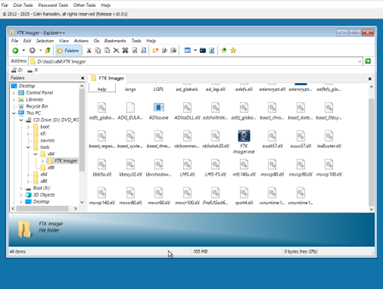
Image No. 2 WinFE Set up with FTK Imager
The Protect Tool Disk Management Console is one of the key features of WinFE that presents the list of disks available in the target computer and their status such as Mount, Read Only, Read/Write and obtain details of the disks connected.
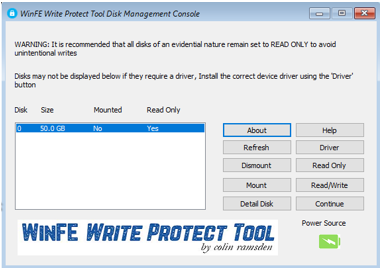
Image No. 3 WinFE Protect Tool Disk Management Console
Something to consider before booting a computer with any bootable operating system is checking the boot order of the target computer as every manufacturer use different keys.
I introduced WinFE to a friend of mine who is a lawyer and he always has questions about how computer forensics tools work. The question this time was if the write-blocking capability of WinFE works and I accept the challenge to show him how the tool can be used.
I prepared a test environment and acquired three images, each one using different software write-blockers to protect the disk against modifications.
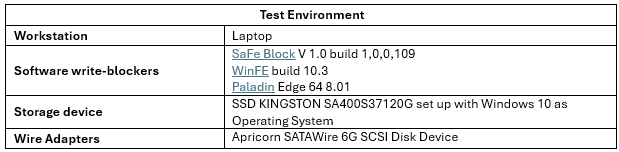
Table No. 1 Test Environment
The SSD KINGSTON was connected to the Laptop as an external disk using the Apricorn SATAWire 6G SCSI Disk Device. The first image was collected using the workstation with Windows 10 and using Safe Block, then a second image was acquired booting the computer with WinFE and then Paladin.
As a result, all the computed and verification hash values from the images acquired were the same, how is presented in the following illustrations.
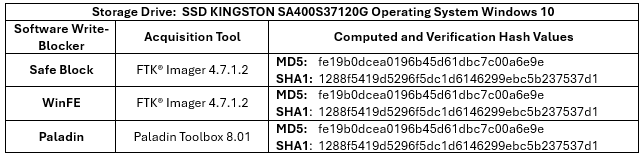
Table No. 2 Hash Values
Acquisition logs results:

Image No. 4 SaFe Block FTK imager

Table No. 5 WinFE FTK imager
Table No. 6 PALADIN
However, Brett Shaver has explained some of the restrictions of using WinFE on non-Windows disks due to disk toggling as well as Troy Larson so we should be aware when the “changes” may be generated and how this could affect the acquisition process. Derick Eiri, has validated the write protection ability on Windows and Linux disks.
The lessons learned, WinFE can be set up with the tools needed to acquire forensic images, we should understand the limitations of WinFE before using it on the field and consider the booting options of the target computer before start WinFE. WinFE should be included in our box tool of bootable operating systems to acquire digital evidence.
References
https://mreerie.com/2023/07/29/disk-toggling-validating-winfe/